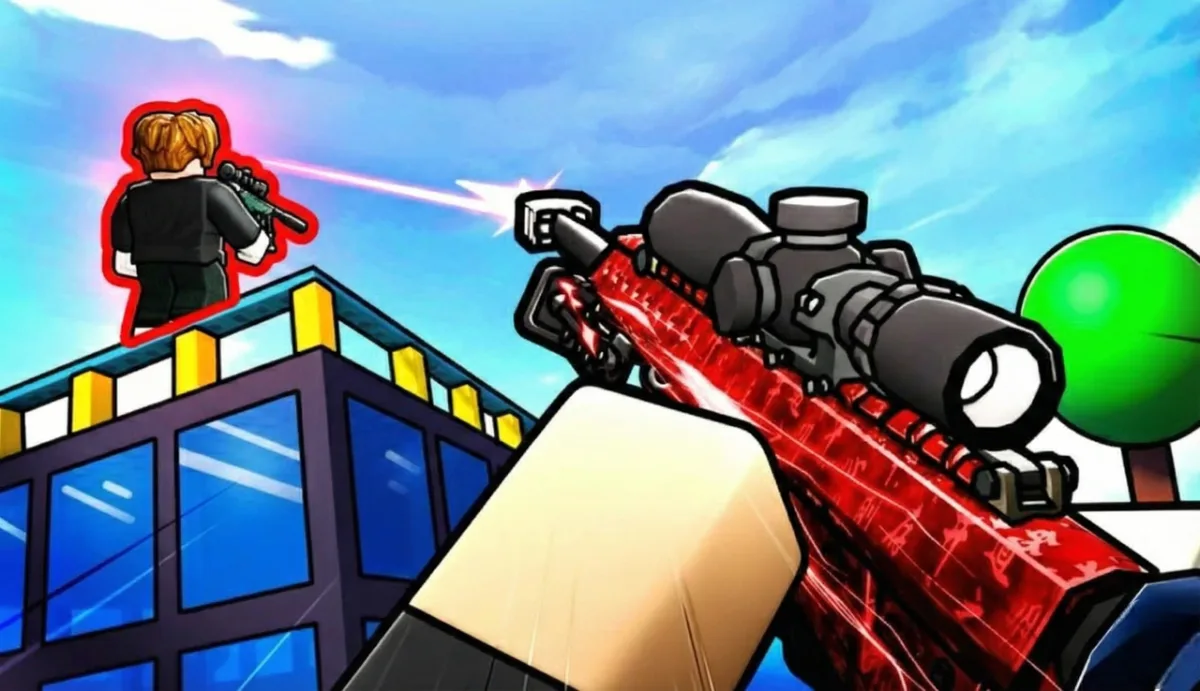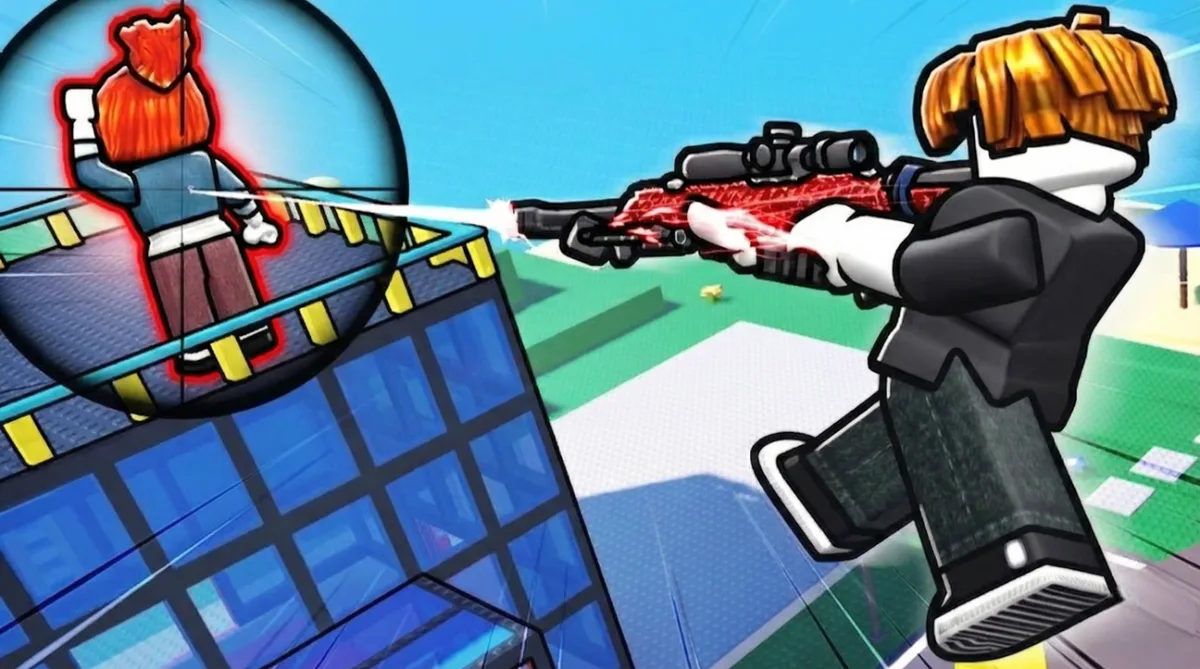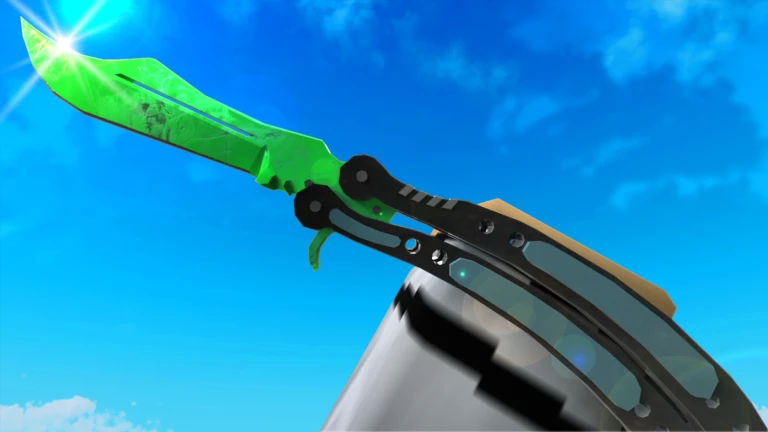
All Knife Arena controls for PC, mobile, Xbox, and PlayStation, plus optimal sensitivity, graphics, and audio settings. This guide covers light vs heavy attacks, sliding mechanics, and platform-specific tips.
Spent my first 10 matches not knowing there was a heavy attack. Just spamming light attacks like an idiot while everyone else was one-shotting me. Turns out the controls aren't obvious, especially if you're coming from other Roblox shooters.
This guide covers every control on every platform, plus the settings that actually matter for competitive play. The default settings are fine for casual play, but if you want to climb the leaderboard, you'll need to tweak some things.
Already know the controls? Check out the Knife Arena Beginner Guide for gameplay tips.
PC Controls
PC is the best platform for Knife Arena. Mouse aiming is more precise than controller or touch, and you have access to all keybinds.
Movement
| Action | Key |
|---|---|
| Move Forward | W |
| Move Backward | S |
| Move Left | A |
| Move Right | D |
| Sprint | Shift (hold) |
| Crouch | Ctrl or C |
| Slide | Ctrl or C (while sprinting) |
| Jump | Space |
Combat
| Action | Key |
|---|---|
| Light Attack | Left Mouse Button (LMB) |
| Heavy Attack | Right Mouse Button (RMB) |
| Inspect Knife | V |
Light vs Heavy Attack
This is the most important thing to understand.
Light Attack (LMB): Fast throw, lower damage. Good for finishing weakened enemies or when you need quick follow-up shots. Shorter cooldown between throws.
Heavy Attack (RMB): Slower wind-up, higher damage. Can one-shot on headshots with most knives. Longer cooldown but devastating when it lands.
Most new players spam light attacks. Good players use heavy attacks for opening shots and light attacks for cleanup. The wind-up on heavy attacks is noticeable, so you need to predict where enemies will be, not where they are.
Sliding
Sliding is underrated. Sprint + Crouch makes you slide, which:
- Makes you harder to hit
- Maintains momentum
- Lets you duck under throws
I started incorporating slides after getting destroyed by someone who was impossible to hit. Turns out they were slide-canceling constantly. Now I do the same.
Mobile Controls
Mobile has auto-aim assist, which helps compensate for touch controls. It's playable but you're at a disadvantage against PC players.
Default Layout
| Action | Control |
|---|---|
| Move | Left virtual joystick |
| Look | Right side of screen (drag) |
| Light Attack | Auto-attack when aimed |
| Heavy Attack | Heavy attack button |
| Crouch | Crouch button |
| Jump | Jump button |
Auto-Lock Feature
Mobile has an auto-lock feature that helps you track enemies. When enabled, your aim will stick to nearby enemies slightly. This is huge for mobile players because precise aiming with touch is hard.
To enable: Settings > Gameplay > Auto-Lock > On
I tested mobile for about 2 hours. The auto-lock helps but it's not magic. You still need to lead targets and predict movement. It just makes tracking easier.
Mobile Tips
Use two thumbs. One for movement, one for aiming. Don't try to do both with one hand.
Increase sensitivity. Default mobile sensitivity is too low. Bump it up until you can do a 180 comfortably.
Play on WiFi. Mobile data latency will get you killed. The game requires quick reactions.
Consider a controller. If you're serious about mobile play, connect a Bluetooth controller. It's a massive upgrade.
Xbox Controls
Xbox uses the standard Roblox controller layout with some Knife Arena specific bindings.
Movement
| Action | Button |
|---|---|
| Move | Left Stick |
| Look | Right Stick |
| Sprint | Left Stick (click) |
| Crouch/Slide | B |
| Jump | A |
Combat
| Action | Button |
|---|---|
| Light Attack | RT (Right Trigger) |
| Heavy Attack | LT (Left Trigger) |
| Inspect Knife | Y |
Xbox Tips
Adjust stick sensitivity. The default is usually too high. Go to Settings > Controls and lower it until your aim feels smooth.
Use the triggers properly. RT for quick throws, LT for power shots. Don't mash RT constantly.
Aim assist exists. Console has slight aim assist built in. It's not as strong as mobile auto-lock but it helps.
PlayStation Controls
PlayStation 5 is supported with similar controls to Xbox.
Movement
| Action | Button |
|---|---|
| Move | Left Stick |
| Look | Right Stick |
| Sprint | L3 (Left Stick click) |
| Crouch/Slide | Circle |
| Jump | X |
Combat
| Action | Button |
|---|---|
| Light Attack | R2 |
| Heavy Attack | L2 |
| Inspect Knife | Triangle |
PlayStation Tips
Same as Xbox. Adjust sensitivity, use triggers correctly, and take advantage of aim assist.
Optimal Settings
Default settings work, but these tweaks will improve your gameplay.
Sensitivity
This is personal preference, but here's a starting point:
PC (Mouse):
- Start at 0.5 sensitivity
- Adjust until you can track a moving target smoothly
- Lower is usually better for precision
Console (Controller):
- Start at 4-5 sensitivity
- Increase if you can't turn fast enough
- Decrease if you're overshooting targets
Mobile (Touch):
- Start at 60-70% sensitivity
- Higher than PC/console because touch is less precise
- Adjust based on screen size
My Settings
After a lot of testing, here's what I use on PC:
| Setting | Value |
|---|---|
| Mouse Sensitivity | 0.4 |
| FOV | 90 |
| Graphics Quality | 4 (medium) |
| Master Volume | 80% |
| Music Volume | 20% |
| SFX Volume | 100% |
The low sensitivity helps with precision. The medium graphics keep FPS stable. The audio settings let me hear footsteps clearly without music distracting me.
Graphics Settings
Lower graphics = higher FPS = smoother gameplay. Unless you have a beast PC, consider lowering graphics for competitive play.
| Setting | Recommended |
|---|---|
| Graphics Quality | 4-6 |
| Shadows | Off or Low |
| Particles | Low |
The visual difference between max and medium graphics is minimal. The performance difference is significant.
Audio Settings
Sound matters in Knife Arena. Footsteps tell you where enemies are before you see them.
| Setting | Recommended |
|---|---|
| Master Volume | 70-100% |
| Music Volume | 0-30% |
| SFX Volume | 100% |
Turn music down or off. It's nice but it covers footstep audio. SFX at max so you hear everything.
FOV (Field of View)
Higher FOV lets you see more of the map but makes targets smaller. Lower FOV zooms in but limits peripheral vision.
Recommended: 85-95
I use 90 as a balance. Some players go higher (100+) for awareness, some go lower (80) for easier aiming. Experiment and find what works for you.
Advanced Control Tips
Keybind Customization
Roblox lets you rebind some keys. Consider:
- Crouch to a mouse button if you have extra buttons. Easier to slide while moving.
- Sprint toggle vs hold. Toggle is easier on your pinky for long sessions.
Crosshair Placement
Not a setting, but a habit. Keep your crosshair at head height while moving. When an enemy appears, you only need to adjust horizontally. This cuts reaction time significantly.
Pre-Aiming
Before peeking a corner, aim where you expect enemies to be. Don't peek and then aim. Aim and then peek.
Movement While Throwing
You can move while throwing. Use this. Strafe left or right during your throw animation to make yourself harder to hit.
Platform Comparison
| Platform | Pros | Cons |
|---|---|---|
| PC | Best aim precision, all keybinds | Requires good hardware |
| Mobile | Auto-lock assist, play anywhere | Touch controls are imprecise |
| Xbox | Controller comfort, aim assist | Less precise than mouse |
| PlayStation | Same as Xbox | Same as Xbox |
If you're serious about climbing the leaderboard, PC is the way to go. Mobile and console are fine for casual play.
Troubleshooting
Input Lag
If your inputs feel delayed:
- Lower graphics settings
- Close background applications
- Check your internet connection
- Try wired connection instead of WiFi
Sensitivity Feels Wrong
If sensitivity changes aren't working:
- Restart the game after changing settings
- Check if Roblox has its own sensitivity setting overriding the game
- On console, check system-level sensitivity settings
Controls Not Responding
If buttons aren't working:
- Make sure the game window is focused (PC)
- Reconnect your controller
- Check for Roblox updates
- Restart Roblox entirely
Related Content
- Knife Arena Codes for free rewards
- Knife Arena Beginner Guide for gameplay tips
- Knife Arena Knife Tier List for best knives
- Knife Arena Maps Guide for map strategies