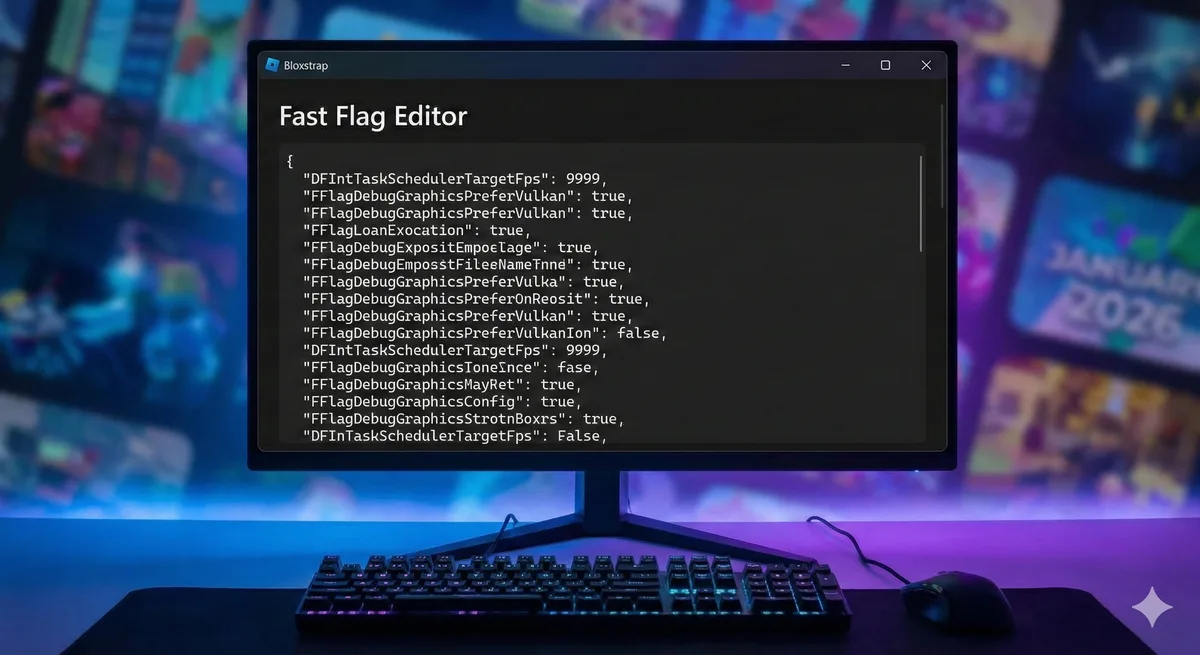
Fast flags are Roblox's hidden settings that control graphics, performance, and features. Bloxstrap lets you edit them without messing with system files. I went from 45 FPS in Blox Fruits to 120+ after finding the right flags.
Fair warning: some TikTokers sell fast flag configs for money. Don't pay for them. Everything here is free, tested, and copy-paste ready.
What Are Fast Flags?
Fast flags are configuration options Roblox uses internally. They control things like:
- Graphics quality and rendering
- Frame rate limits
- Texture loading
- Lighting effects
- Network behavior
Roblox doesn't expose these in normal settings. Bloxstrap gives you access to edit them directly.
Is this cheating? No. Fast flags don't give gameplay advantages like speed hacks or aimbots. They just change how the game looks and performs. Roblox allows Bloxstrap and hasn't banned anyone for using fast flags.
Installing Bloxstrap
If you don't have Bloxstrap yet:
- Go to bloxstraplabs.com or the GitHub releases page
- Download the latest version
- Run the installer
- Bloxstrap replaces the normal Roblox launcher
When you launch Roblox games, they'll go through Bloxstrap instead of the default launcher. Everything else works the same.
Accessing Fast Flag Editor
- Open Bloxstrap (not Roblox)
- Click Menu in the top left
- Select Fast Flags
- Click Fast Flag Editor
You'll see a JSON editor. This is where you paste flag configurations.
Universal FPS Boost Flags
These work for any game and any PC. Copy the entire block and paste it into the Fast Flag Editor.
{
    "DFIntTaskSchedulerTargetFps": 9999,
    "FFlagDebugGraphicsPreferVulkan": true,
    "FIntRenderGrassDetailStrands": 0,
    "FIntRenderGrassHeightScaler": 0,
    "FIntRenderShadowIntensity": 0,
    "FIntRenderLocalShadowQuality": 0,
    "FFlagDisablePostFx": true,
    "DFFlagTextureQualityOverrideEnabled": true,
    "DFIntTextureQualityOverride": 0
}
What each flag does:
- TaskSchedulerTargetFps: Removes the 60 FPS cap
- PreferVulkan: Uses Vulkan renderer (better performance on most GPUs)
- GrassDetailStrands/HeightScaler: Removes grass rendering
- ShadowIntensity/LocalShadowQuality: Disables shadows
- DisablePostFx: Removes post-processing effects
- TextureQualityOverride: Lowest texture quality
This config prioritizes FPS over visuals. The game looks worse but runs way faster.
Low-End PC Config
For laptops and older desktops struggling to hit 30 FPS:
{
    "DFIntTaskSchedulerTargetFps": 9999,
    "FFlagDebugGraphicsPreferVulkan": true,
    "FIntRenderGrassDetailStrands": 0,
    "FIntRenderGrassHeightScaler": 0,
    "FIntRenderShadowIntensity": 0,
    "FIntRenderLocalShadowQuality": 0,
    "FFlagDisablePostFx": true,
    "DFFlagTextureQualityOverrideEnabled": true,
    "DFIntTextureQualityOverride": 0,
    "FIntTerrainArraySliceSize": 0,
    "FIntDebugForceMSAASamples": 0,
    "DFIntMaxFrameBufferSize": 1,
    "FFlagFastGPULightCulling3": true,
    "FFlagDebugSkyGray": true,
    "FFlagGlobalWindRendering": false,
    "FIntRenderShadowmapBias": 0
}
Additional flags explained:
- TerrainArraySliceSize: Reduces terrain detail
- ForceMSAASamples: Disables anti-aliasing
- MaxFrameBufferSize: Minimum frame buffer
- FastGPULightCulling3: Faster light processing
- DebugSkyGray: Gray sky (less rendering)
- GlobalWindRendering: Disables wind effects
This makes Roblox look like a 2010 game but runs on anything.
Blox Fruits Specific Flags
Blox Fruits has heavy particle effects and water rendering. These flags help:
{
    "DFIntTaskSchedulerTargetFps": 9999,
    "FFlagDebugGraphicsPreferVulkan": true,
    "FIntRenderGrassDetailStrands": 0,
    "FIntRenderShadowIntensity": 0,
    "FFlagDisablePostFx": true,
    "DFIntTextureQualityOverride": 1,
    "FIntRenderWaterRefraction": false,
    "FIntRenderWaterReflection": false,
    "FFlagRenderWaterReflectionType": 0,
    "DFIntCSGLevelOfDetailSwitchingDistance": 0,
    "DFIntCSGLevelOfDetailSwitchingDistanceL12": 0,
    "DFIntCSGLevelOfDetailSwitchingDistanceL23": 0,
    "DFIntCSGLevelOfDetailSwitchingDistanceL34": 0
}
Blox Fruits specific:
- WaterRefraction/Reflection: Disables water effects (big FPS gain in sea areas)
- CSGLevelOfDetail: Reduces mesh detail at distance
I gained 40 FPS in the Second Sea with these flags. Water areas used to tank my framerate.
Rivals Specific Flags
Rivals (the basketball game) has lots of player models on screen. These help:
{
    "DFIntTaskSchedulerTargetFps": 9999,
    "FFlagDebugGraphicsPreferVulkan": true,
    "FIntRenderShadowIntensity": 0,
    "FFlagDisablePostFx": true,
    "DFIntTextureQualityOverride": 2,
    "FIntRenderGrassDetailStrands": 0,
    "FFlagDebugDisableTelemetryEphemeralCounter": true,
    "FFlagDebugDisableTelemetryEphemeralStat": true,
    "FFlagDebugDisableTelemetryEventIngest": true,
    "FFlagDebugDisableTelemetryPoint": true,
    "FFlagDebugDisableTelemetryV2Counter": true,
    "FFlagDebugDisableTelemetryV2Event": true,
    "FFlagDebugDisableTelemetryV2Stat": true
}
Rivals specific:
- TextureQualityOverride 2: Slightly higher textures (player skins look better)
- DisableTelemetry flags: Stops Roblox from sending analytics (minor FPS gain)
The telemetry flags reduce background CPU usage. Small gain but noticeable in competitive games.
The Strongest Battlegrounds Flags
TSB has lots of effects during combat. These reduce visual clutter:
{
    "DFIntTaskSchedulerTargetFps": 9999,
    "FFlagDebugGraphicsPreferVulkan": true,
    "FIntRenderShadowIntensity": 0,
    "FFlagDisablePostFx": true,
    "DFIntTextureQualityOverride": 1,
    "FIntRenderGrassDetailStrands": 0,
    "FFlagNewLightAttenuation": true,
    "FIntRenderLocalShadowQuality": 0,
    "DFFlagDebugRenderForceTechnologyVoxel": true
}
TSB specific:
- NewLightAttenuation: Simpler lighting calculations
- ForceTechnologyVoxel: Uses voxel lighting (faster than default)
Combat stays readable while effects don't tank your FPS.
Balanced Quality Config
If you want decent visuals AND good FPS:
{
    "DFIntTaskSchedulerTargetFps": 9999,
    "FFlagDebugGraphicsPreferVulkan": true,
    "FIntRenderShadowIntensity": 75,
    "FIntRenderLocalShadowQuality": 1,
    "DFIntTextureQualityOverride": 2,
    "FIntRenderGrassDetailStrands": 4,
    "FFlagDisablePostFx": false
}
This keeps shadows (reduced), textures (medium), and some grass. Good middle ground for mid-range PCs.
How to Apply Flags
- Open Bloxstrap
- Go to Menu > Fast Flags > Fast Flag Editor
- Delete any existing content in the editor
- Paste your chosen config
- Click Save
- Launch Roblox normally
Flags apply immediately. No restart needed unless specified.
Resetting to Default
If something breaks or you want vanilla Roblox back:
- Open Fast Flag Editor
- Delete everything
- Save
- Flags reset to Roblox defaults
You can also click Clear All Flags if that button exists in your Bloxstrap version.
Flags That Don't Work Anymore
Roblox patches some flags over time. These used to work but are now broken:
- FFlagHandleAltEnterFullscreenManually - Patched
- DFIntConnectionMTUSize - No longer affects anything
- FFlagDebugDisplayFPS - Use Bloxstrap's built-in FPS counter instead
If a flag from an old guide doesn't seem to do anything, it's probably been patched.
Common Issues
Game looks completely broken
Some flag combinations conflict. Start with the Universal FPS Boost config and add flags one at a time to find what breaks.
FPS didn't improve
- Make sure Bloxstrap is actually launching Roblox (check the window title)
- Verify flags saved correctly
- Some games override certain flags
Vulkan causing crashes
Remove the Vulkan flag:
"FFlagDebugGraphicsPreferVulkan": true
Some older GPUs don't support Vulkan well. DirectX (default) is more stable.
Game won't launch
Clear all flags and try again. A typo in the JSON can prevent launch.
Finding New Flags
Fast flags change with Roblox updates. To find current ones:
- Check the Bloxstrap Discord server
- Search GitHub for "roblox fast flags"
- Look at Roblox developer forums
Don't trust random TikTok accounts selling "secret" flags. They're usually outdated or fake.
Is This Bannable?
No. Bloxstrap is a legitimate launcher that Roblox tolerates. Fast flags are Roblox's own settings, just not exposed in the UI.
What IS bannable:
- Exploits/scripts that modify gameplay
- Speed hacks, aimbots, etc.
- Anything that gives unfair advantages
What's NOT bannable:
- Fast flags for performance
- Visual changes (removing grass, shadows)
- FPS removing (removes the 60 FPS cap)
Thousands of players use Bloxstrap daily. No ban waves have targeted fast flag users.
Related Help Articles
- Roblox Mobile 120 FPS Guide - Mobile performance tips
- Blox Fruits Codes - Free rewards
- Rivals Codes - Free rewards